1
Work Locally
Open the native macOS workspace panel to keep your terminal sessions and browser context side by side in a dedicated developer interface.
ConnectSSH pairs persistent tmux sessions with integrated browser preview panes inside a native Mac workspace. Resume active terminal sessions from any SSH client when you are away from your desk.
Resume your workspace from any remote terminal or mobile SSH client using standard macOS SSH access.
See how ConnectSSH manages workspaces, runs local environment checks, and coordinates secure remote terminal connections on your hardware.
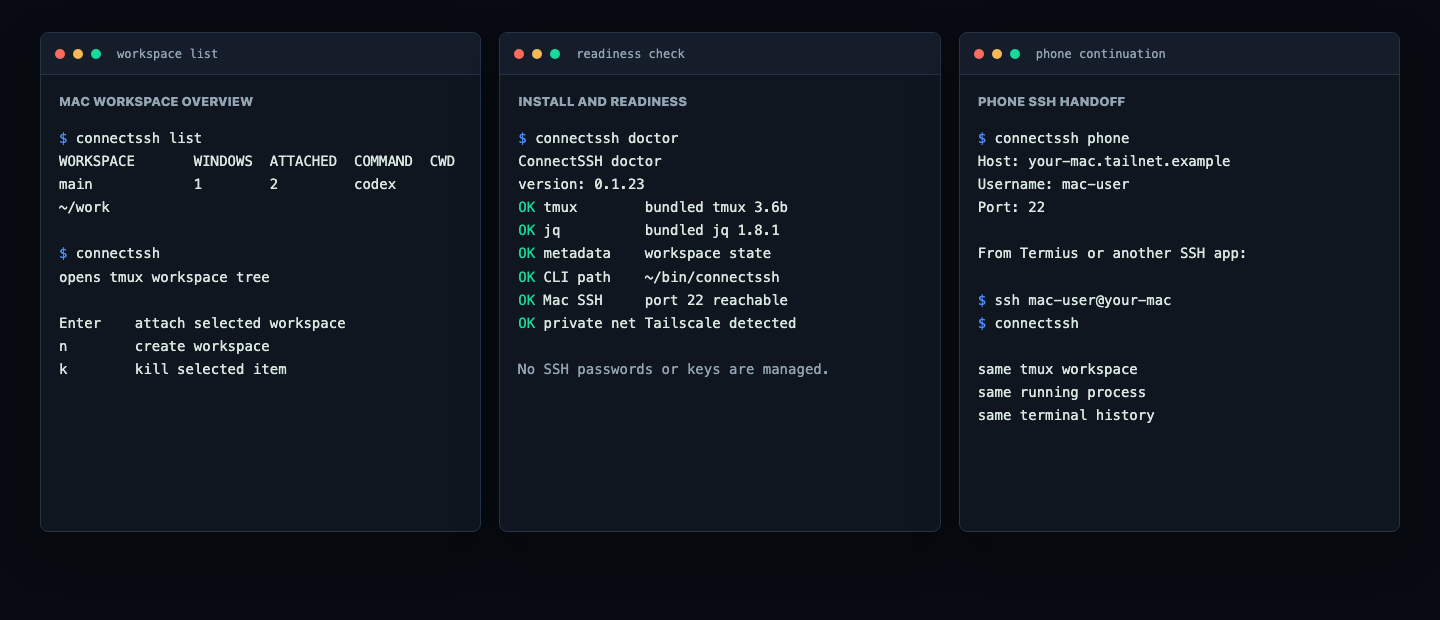
The design connects your desktop workspace directly to persistent server state running locally on macOS.
Open the native macOS workspace panel to keep your terminal sessions and browser context side by side in a dedicated developer interface.
Detach, close the window, or leave your desk. The underlying tmux session keeps running your active development servers and tools.
SSH into your own Mac over your trusted local or remote network path, then run the utility command to resume where you left off.
Your credentials stay in your own custody. You connect to your own Mac through your established SSH configuration. ConnectSSH coordinates local tmux workspaces, browser preview panels, and the remote terminal command sequence without intercepting your private keys.
Stop managing scattered terminal tabs and disconnected browser previews. Get a professional local workstation wrapper.
Keep local execution running across terminal app restarts, network resets, or hardware standby sleep cycles.
Maintain your web development previews alongside the command line process that manages them.
Access your primary workspace using standard mobile terminal applications over secure SSH protocols.
Utilize a custom desktop workspace UI designed specifically for session selection and panel organization.
The distribution package supports a clean terminal installation script designed for private preview developers.
The installer also includes a macOS desktop application package ready for system setup when the public preview launches.
The private preview is currently waitlist only. When the preview opens to the public, the installation packages will support both graphical system installers and standard terminal setup commands.
$ ./install.sh
Installed App: ~/Applications/ConnectSSH.app
Installed CLI: ~/bin/connectssh

$ connectssh doctor
OK tmux
OK jq
OK Local SSH configuration
OK phone continuation path
Understand the security boundaries and engineering choices driving ConnectSSH.
It does not interact with them. ConnectSSH is not an authentication provider and does not create, store, or manage private keys, SSH passwords, or authorized user credentials. Your existing security remains untouched.
No. There is no custom mobile application required. You can use standard terminal software like Termius, Blink, or Prompt to connect to your own Mac, then execute the utility command to hook back into your session.
No. The tmux utility acts as the core persistence engine. ConnectSSH packages this functionality inside a tailored desktop workspace shell designed for macOS with browser preview panes and terminal handoff paths.
The preview remains invitation only while packaging, signing, and initial local evaluation are completed. Submit your request using the waitlist links to be notified when slots become available.
Join the private preview list to receive access when new ConnectSSH Mac workspace slots are available.
Legacy Hosted App